

Use Cases for MoEngage Streams
The following are a few popular use cases for Streams:- Enrich the central data warehouse with MoEngage events such as Notification Clicked Android, Email Clicked, SMS Clicked, and so on.
- Forward the Conversion Events, such as Purchase, Song Played, Bill Payment Done, and so on, from MoEngage to the external Analytics tool.
- Feed campaign interaction events from MoEngage to your recommendation system.
- Export the notification interaction data from MoEngage to your machine learning system for optimizing the performance of your algorithms.
- Send all user events present in MoEngage to an external data lake.
Campaign Interaction Events
The following is a list of Campaign Interaction Events that MoEngage generates, which you will often need to be sent to your API endpoint:- With the events above, the following event attributes will be exported by default:
campaign_id,campaign_name,campaign_type,campaign_channel. - The following event attributes are not supported for export in streams currently:
email_subject,email_click_url,inapp_widget_clicked,onsite_message_url_clicked.
API Request Format
When Streams sends an event to your API endpoint, the request format will be as below: Headers:"Content-Type":"application/json"
Request Body:
- JSON
Streams Data Glossary
For the full list of updated events and attributes, refer to Data Exports Glossary.
Authentication Methods
Streams supports the following types of authentications:- No auth
- Basic Auth: Streams supports the standard Basic Auth implementation. You must provide MoEngage with the username and password while configuring Streams. MoEngage always encrypts all authentication data in its systems.
- OAuth 2.0: Streams supports OAuth 2.0 authentication using the Client Credentials grant type, where MoEngage fetches and refreshes the access token for you. A self-serve option to select OAuth 2.0 directly in Streams is not yet available. For setup steps, refer to Configure OAuth 2.0 for Streams.
Configure OAuth 2.0 for Streams
To use OAuth 2.0 as the authentication method for Streams, first create an OAuth 2.0 configuration in MoEngage, and then request enablement for your Streams endpoint through a support ticket.1
Create an OAuth 2.0 configuration
Navigate to Settings > Advanced settings > Authorization configuration and add an OAuth 2.0 configuration using the Client Credentials grant type. Provide the token endpoint, credentials, and response settings for your authorization server. For the full walkthrough, refer to Authorization Configuration with OAuth 2.0.
2
Confirm the configuration is active
Save the configuration and verify that its status is Active on the Authorization configuration page. A “Failed” configuration cannot fetch a token and cannot be used for Streams.
3
Note the OAuth configuration ID
Open the OAuth 2.0 configuration you created. The configuration ID is the last segment of the page URL. For example, if the URL is 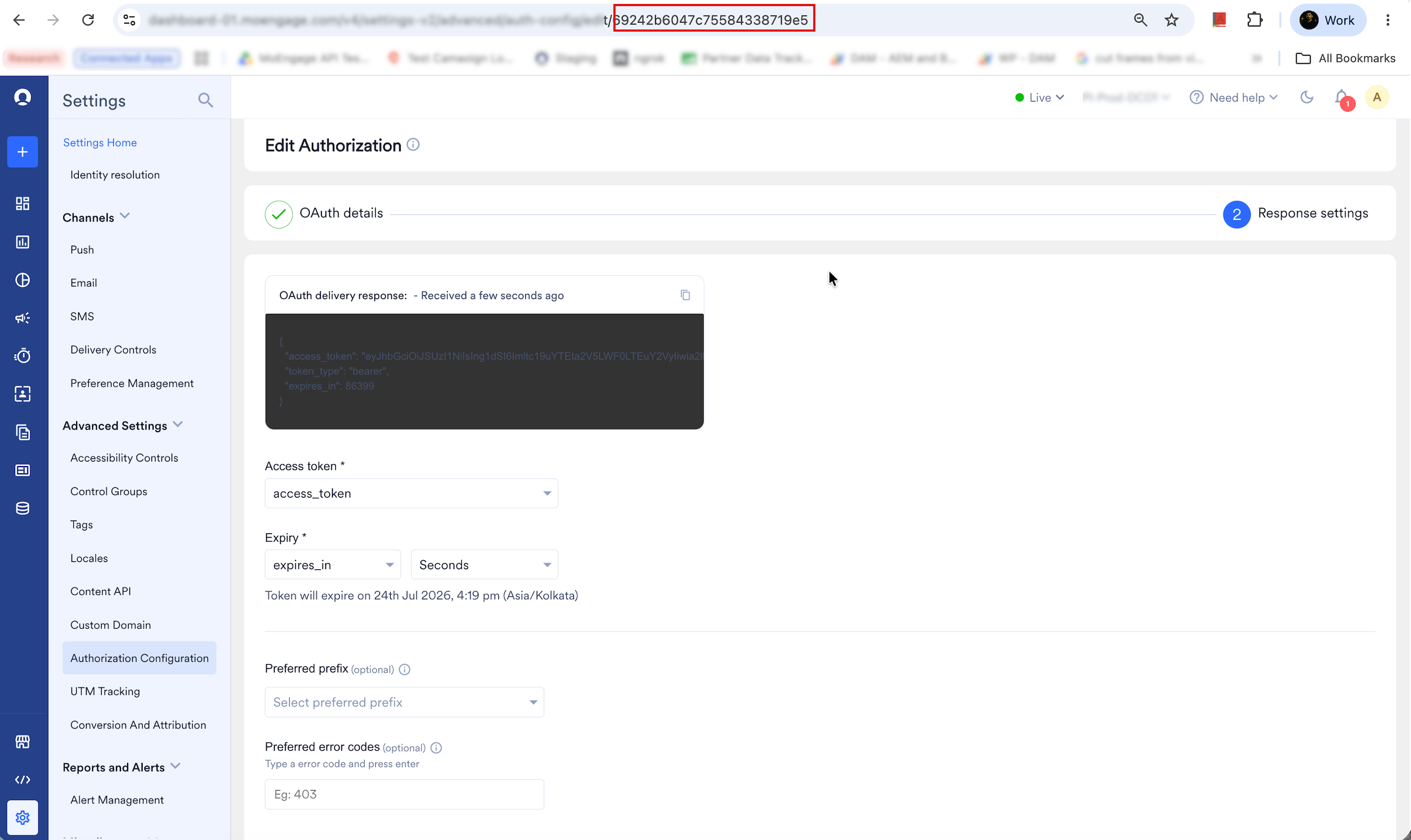
.../advanced/auth-config/edit/69242b6047c75584338719e5, the configuration ID is 69242b6047c75584338719e5. Copy this ID to include in the enablement ticket.4
Raise a support ticket to enable OAuth 2.0 for Streams
Follow the steps in Enable Streams for Your Account and include the OAuth configuration ID so that the Support team can link your OAuth 2.0 configuration to your Streams endpoint.
Enable Streams for Your Account
Streams is available as part of the Streams add-on. Contact your dedicated MoEngage Customer Success Manager (CSM) to enable it for your account.
Set Up Streams for Exporting Data to Your API Endpoint
To export data from MoEngage to your servers, contact your MoEngage Customer Success Manager (CSM) or the Support team with the following information:- API endpoint to send the data. It can be something like
https://api.example.com/events. - List of events that need to be sent to this API endpoint. A list of campaign events available for export is mentioned in the Campaign Interaction Events section.
- List of user attributes and device attributes that need to be sent to the API endpoint with each event.
- If you need all campaign interaction events, MoEngage exports such events as mentioned in the Campaign Interaction Events section.
- Support Ticket
Whitelist IPsIf your endpoints are in a Virtual Private Cloud (VPC) or not accessible publicly, you must whitelist these MoEngage IPs depending on the region of your Workspace.
Set Up Streams for Exporting Data to Partners
With Streams, you can export data directly to integrated partners so that you can enrich your marketing/analytics activities on these platforms. As of now, Streams can export data to the following partners: Please follow partner-specific integration documents for setting this up.Stream Events to Another MoEngage App
With MoEngage Streams, you can sync events from one MoEngage App to another. Common use cases include:- Cross-Product Promotions: If you have teams across various product offerings, keeping two apps synced helps you cross-promote products to upsell and increase conversion.
- Centralized Analysis: Businesses with multiple apps can run cross-app analysis to unlock higher LTV, cross-sell, and increase brand loyalty.
1
Get your Streams endpoint
Speak to your CSM to get your dedicated Streams endpoint for your destination app.
2
Set up Streams on the source app
Follow the enablement steps to configure the source app with the following details:
- Endpoint: Use the dedicated MoEngage endpoint provided for your destination app.
- Authentication: Enable Basic Auth. Use your destination app’s Workspace ID as the username and its Data API Key as the password.
- Header: Provide
"Content-Type" : "application/json". - Events/Properties: Select the list of events and user properties you want to stream.
Limitations
Please be aware of the following constraints or limitations while integrating Streams with third-party apps.- MoEngage can send data to only one static endpoint. If the access token expires, use an OAuth 2.0 configuration so that MoEngage can fetch and refresh the token for you (see Authentication Methods). For any other authentication method, MoEngage cannot integrate with an endpoint where the access token or link expires or is refreshed every few hours.
- MoEngage cannot modify the body or key names while streaming the data.
Frequently Asked Questions
What is the throughput, average volume, and batch size?
What is the throughput, average volume, and batch size?
The throughput and average volume of each API request depends on the volume of selected events captured into MoEngage. The default batch size (number of events for each API request) is 100.
What is the retry mechanism of Streams?
What is the retry mechanism of Streams?
In case a batch of events fail (any non-2XX response), the entire batch is retried. In total, three retry attempts are made with intervals of 30, 60, and 120 seconds.
If I pause Streams, can I still get the data later?
If I pause Streams, can I still get the data later?
No. If you pause Streams, data is not collected for exports and cannot be replayed at a later date.
Does Streams guarantee the latest user attributes?
Does Streams guarantee the latest user attributes?
No. Streams is built for near real-time event export. Since user attributes are updated asynchronously, MoEngage cannot guarantee the latest values in the export.
Can I export historical data using Streams?
Can I export historical data using Streams?
No. You can only export data generated after the Streams configuration is enabled.