

Introduction
Databricks is a platform that allows organizations to store, analyze, and process large volumes of structured and semi-structured data in a highly scalable and efficient manner. With its unique architecture, organizations can consolidate their data, perform quick analytics, and gain valuable data-driven insights accessible to all users.MoEngage <> Databricks
With this integration, you can export data from campaign interaction events to your Databricks tables.
Delivery Methods
MoEngage delivers event data to Databricks in two ways:- OpenSharing (Zero-Copy Sharing): Your workspace queries MoEngage-hosted data in place through the Delta Sharing protocol. This is the recommended method.
- Direct export: MoEngage writes events into a table in your own schema. Use this method when your workspace does not have Unity Catalog enabled.
The two methods use separate storage layers. Records already delivered through a direct export do not appear in an OpenSharing catalog, and vice versa. To move between methods, contact your MoEngage Customer Success Manager (CSM).
Integration
Prerequisites
The prerequisites depend on the delivery method you choose. Click the tab for your method:- OpenSharing (Zero-Copy Sharing)
- Direct Export
- Ensure your Databricks workspace has Unity Catalog enabled.
- Retrieve your sharing identifier, formatted as
<cloud>:<region>:<metastore-id>. For more information, refer to Step 1: Request Enablement.
Set Up Your Export
- For the full list of events and attributes, refer to the Data Export Glossary.
- The event_time of the exported events is always in UTC.
- MoEngage does not support exporting historical data. Data flows from the point you enable the export.
- OpenSharing (Zero-Copy Sharing)
- Direct Export
With OpenSharing, your workspace queries MoEngage-hosted data directly through the Delta Sharing protocol instead of receiving file-based exports. You do not exchange credentials or write tokens, and your queries always read the current data. You query the shared catalog with your existing SQL editors, notebooks, and BI dashboards through standard Unity Catalog workflows.The following diagram shows how data moves between MoEngage and your workspace: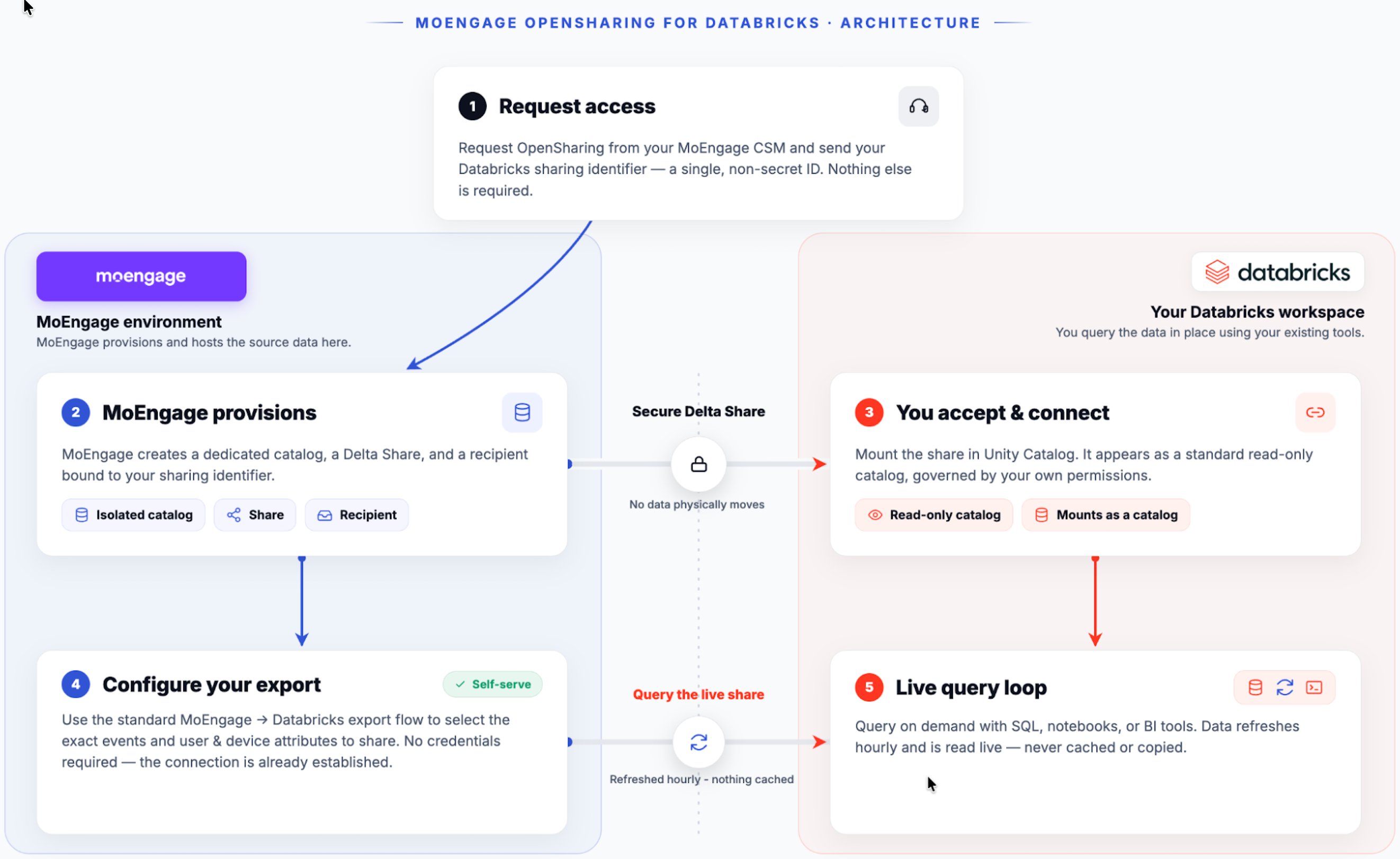
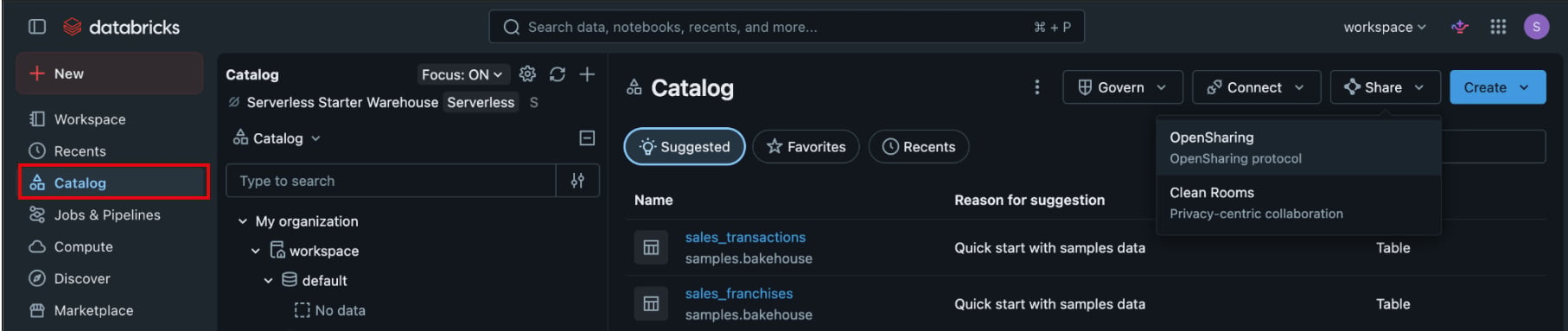
- In your Databricks workspace sidebar, click Catalog.
-
Click Share, and then click OpenSharing.
-
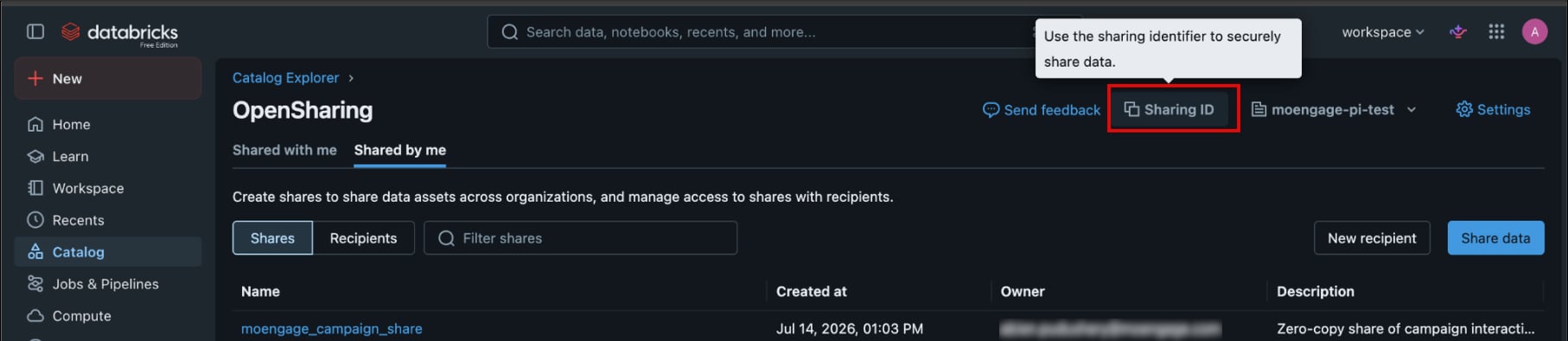
On the OpenSharing page, click Sharing ID to copy your sharing identifier.
-
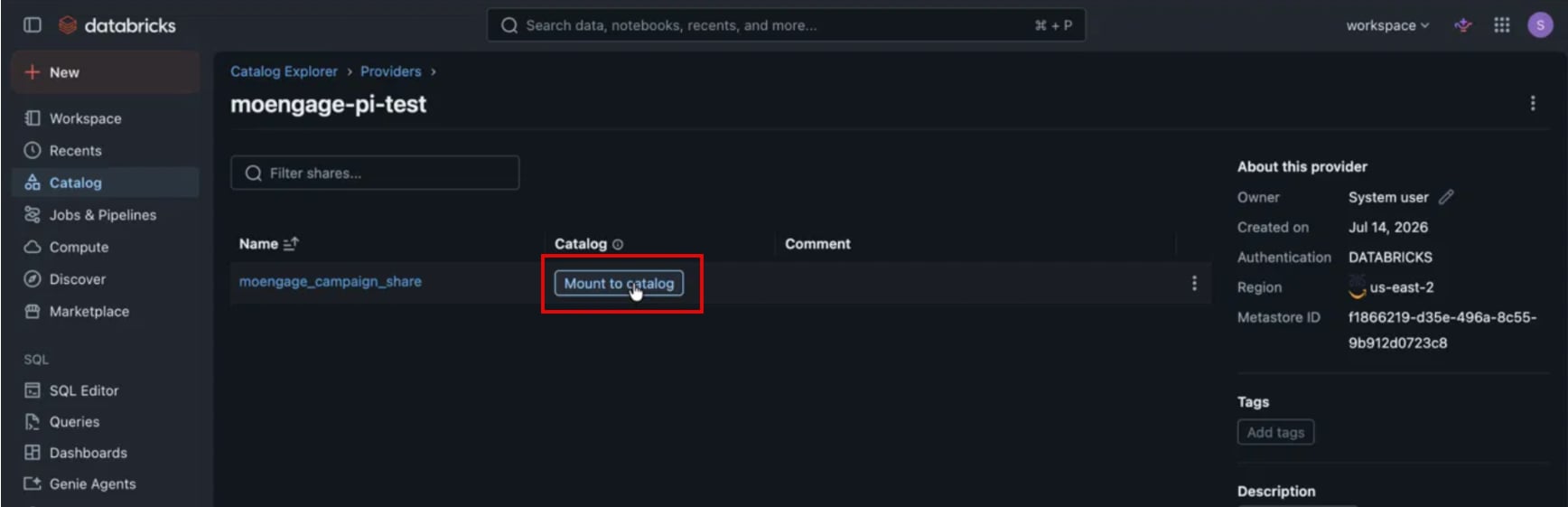
In your Databricks workspace, click Catalog > OpenSharing, and then click the Shared with me tab.
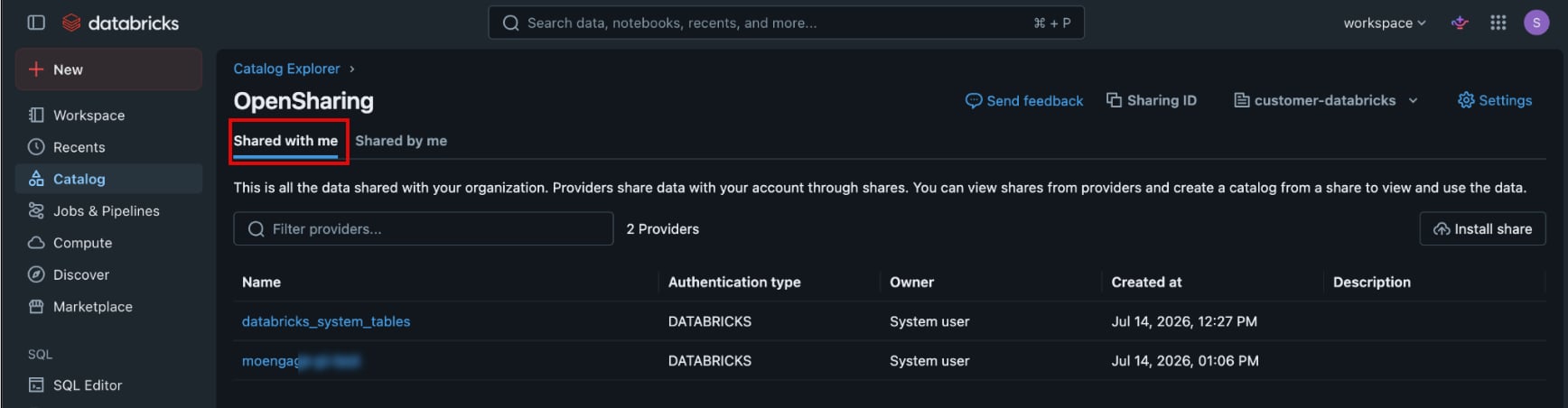
- Click the MoEngage provider that matches the name your CSM sent you.
-
Next to the share, click Mount to catalog.
-
Enter a catalog name, for example,
moengage_shared_data, and then confirm it.
- On the left navigation menu in the MoEngage dashboard, click App marketplace.
- On the App marketplace page, search for Databricks, and then click the Databricks tile.
- Click the Integrate tab.
-
Run the following query:
Replace the placeholders with your catalog, schema, and table names.
-
Click Catalog Explorer.
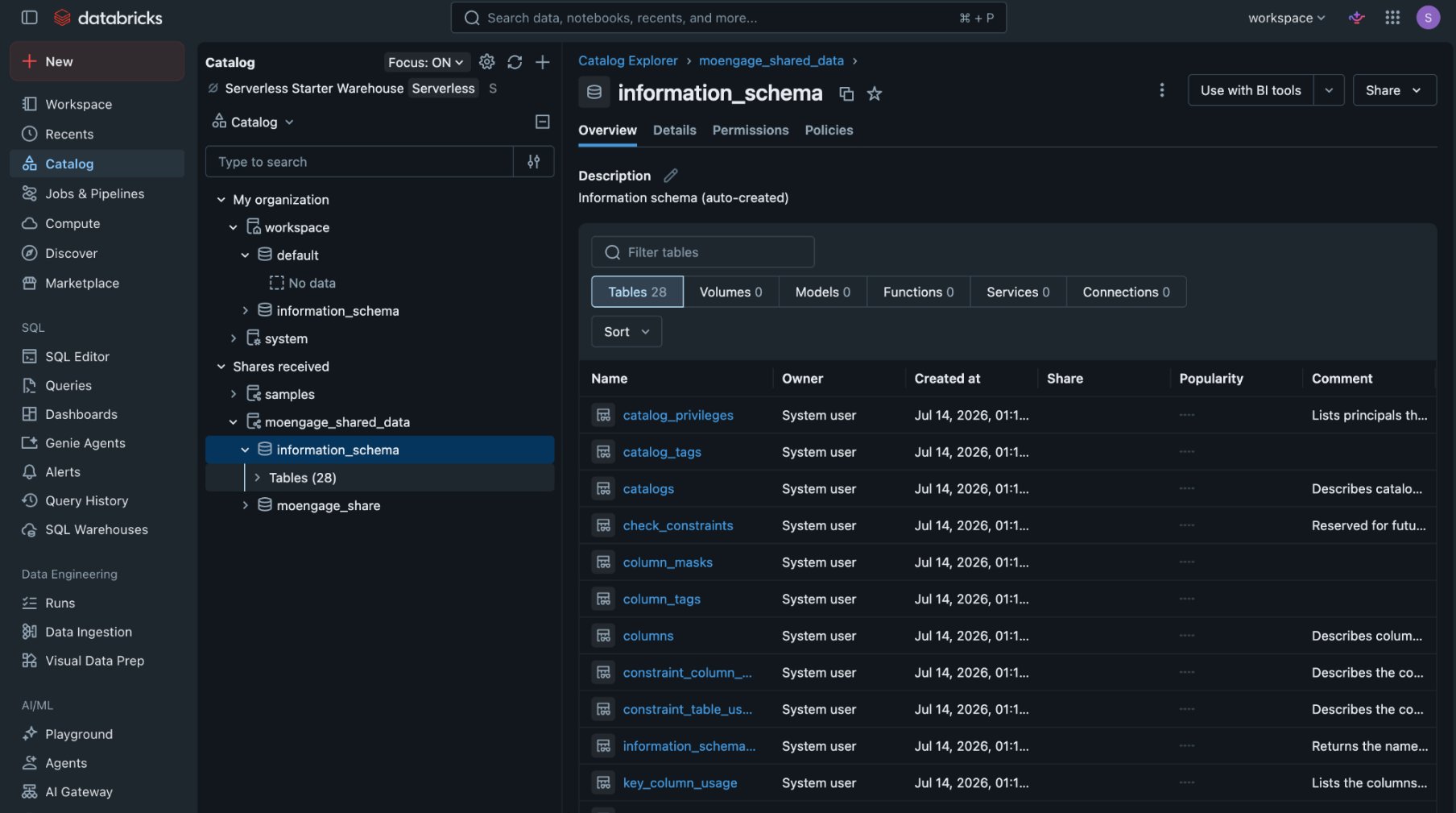
- Click a table, and then click Sample Data.
USE CATALOG and SELECT privileges to the users or groups that need the data.MoEngage has no write access to the catalog, and either party can end the connection at any time. Tell your CSM about any changes to your workspace setup or sharing identifier, because these changes can interrupt delivery.Add a New Databricks Export on the MoEngage App Marketplace
Both delivery methods use this step. With OpenSharing, the connection already exists, so you only choose the schema, events, and attributes. To add a new Databricks export, perform the following steps:- On the left navigation menu in the MoEngage dashboard, click App marketplace.
-
On the App marketplace page, search for Databricks.
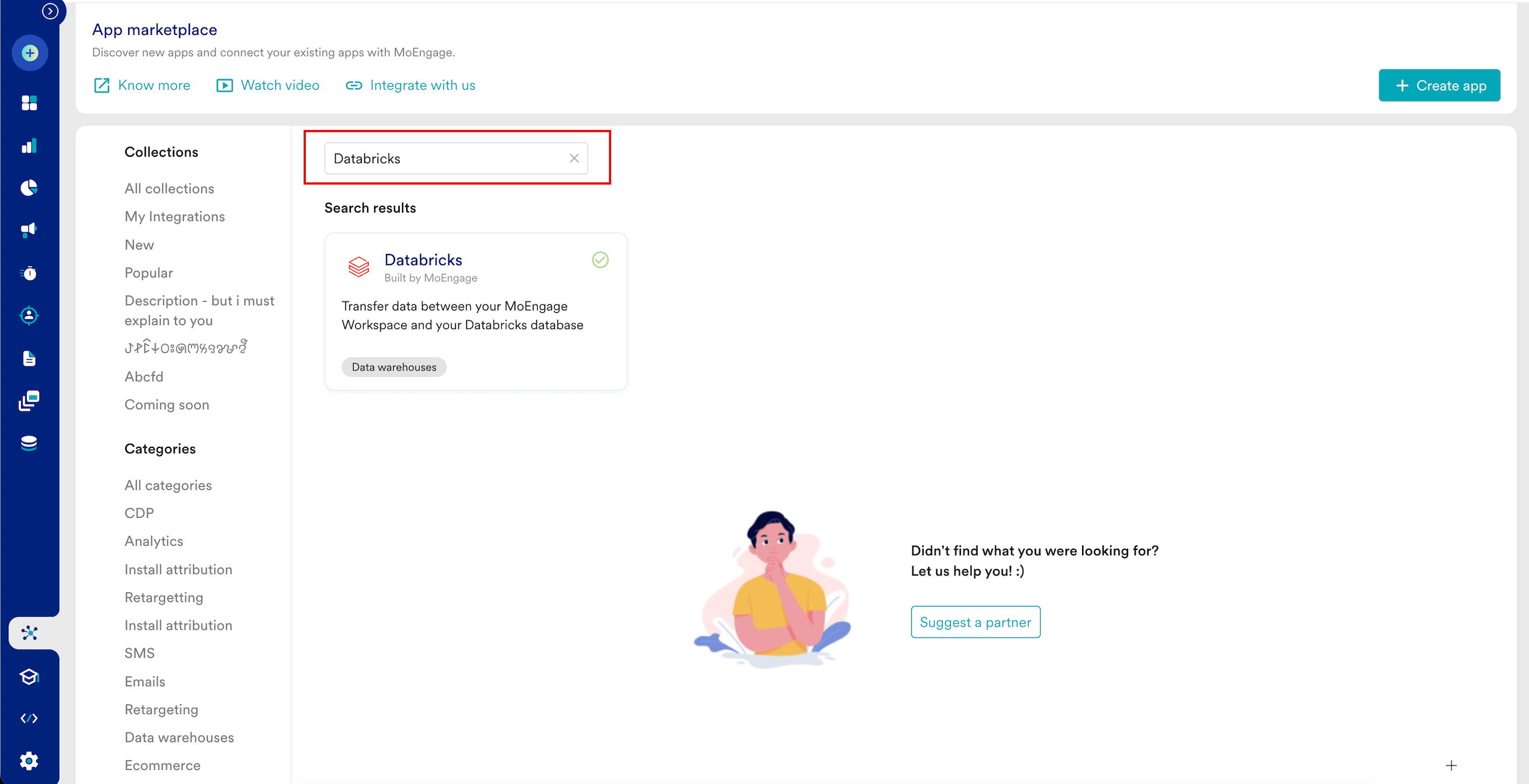
- Click the Databricks tile.
- On the Databricks page, click the Integrate tab, and then click + Add Export.
-
Enter the following details:
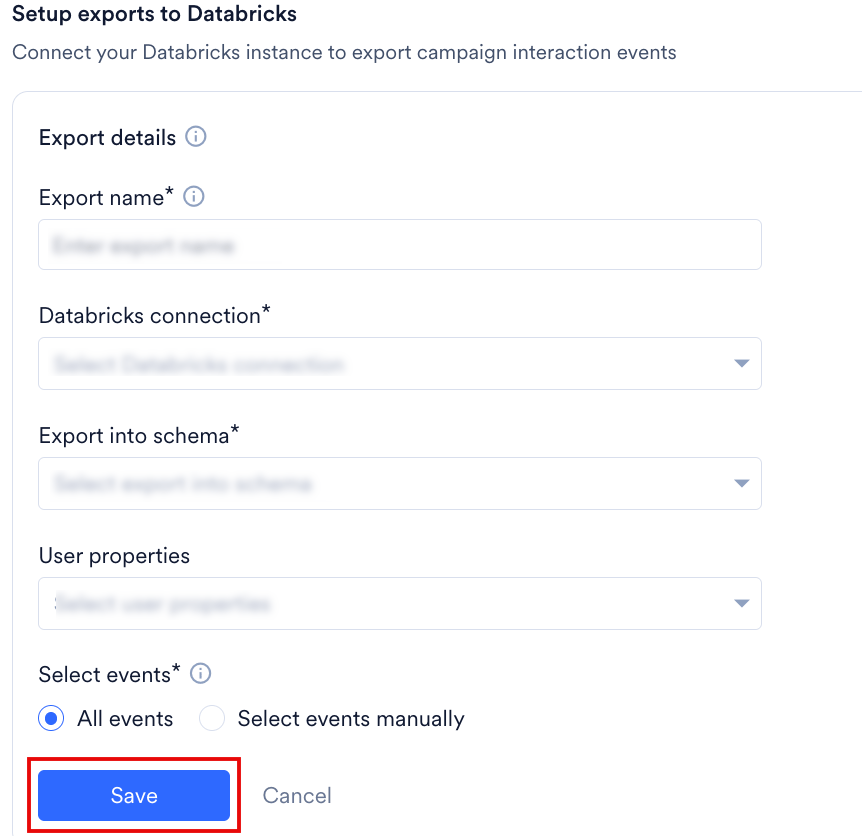
- Click Save.
Export Process and Frequency
Both delivery methods refresh hourly, and neither requires you to run manual sync jobs. For a direct export, MoEngage creates a destination table in your schema after you save the export, and then appends new event data at hourly intervals:- Initial action: MoEngage creates the table when the first export is triggered.
- Recurring action: MoEngage appends data to the same table every hour.
Sample Table Structure
MoEngage creates a single table using the following format:moe_events_<table_creation_timestamp>.
For a direct export, this table is created in your schema. For OpenSharing, it appears in the shared catalog you mounted.
Note: This table is created per connection. All hourly exports and different event types configured under this connection are consolidated and appended to this specific table.
The overall structure of the table remains fixed for all event types. Any new user property or event attribute that is exported is included in the user_attributes or event_attributes column, respectively. All events are consolidated in a single table containing necessary information, such as event names and event times, for easy analysis:
The schema is the same for both delivery methods. Custom column naming is not supported.
Frequently Asked Questions
How soon will I start getting the data?
How soon will I start getting the data?
It typically takes up to 30 minutes for the automated data exports to be set up for your account and for you to start seeing data there.
Can I export additional events at a later time?
Can I export additional events at a later time?
Yes, if you need to export new events at a later time, you can always edit your configuration on the App Marketplace and get the new events added to your exports.
Can I export historical data using Automated Data Exports?
Can I export historical data using Automated Data Exports?
As of now, you cannot export historical data using Automated Data Exports. Once configured, you will start seeing data for each event from the time you enabled your exports. This applies to both direct exports and OpenSharing.
Is there any pricing involved for Automated Data Exports?
Is there any pricing involved for Automated Data Exports?
If your billing plan does not cover this already and you need to get this enabled at a later time, you would need to work with your Customer Success Manager to get this included in your billing plan. Based on the amount of data that MoEngage will place in your Data warehouse/Partner/API on a monthly basis, this could lead to additional charges.
Does Data Exports guarantee the latest user attributes?
Does Data Exports guarantee the latest user attributes?
No, Data Exports is primarily built to export your Events in near real-time and user attributes in MoEngage are updated asynchronously so it is currently not possible to guarantee the latest values of user attributes in the exports.
Can I move from a direct export to OpenSharing?
Can I move from a direct export to OpenSharing?
Yes. Contact your MoEngage CSM to change delivery methods. The two methods use the same schema but separate storage layers, so records already delivered through your direct export do not appear in the OpenSharing catalog.
Can I rename the columns or tables in the OpenSharing catalog?
Can I rename the columns or tables in the OpenSharing catalog?
No. The schema is standardized and custom naming is not supported. You choose which events and attributes to export during configuration, as described in Step 3: Configure Your Export.
Who do I contact after the OpenSharing connection is live?
Who do I contact after the OpenSharing connection is live?
Your MoEngage CSM is the primary contact for maintaining the connection, resolving technical questions, and adjusting your data requirements.